 Glide Vizion
Playback & timeline
NVR plays everything in the browser — live cameras and recorded footage — with no plugin to install and nothing leaving your network. Open http://localhost:8085 (or your server’s address) and sign in.
The live grid#
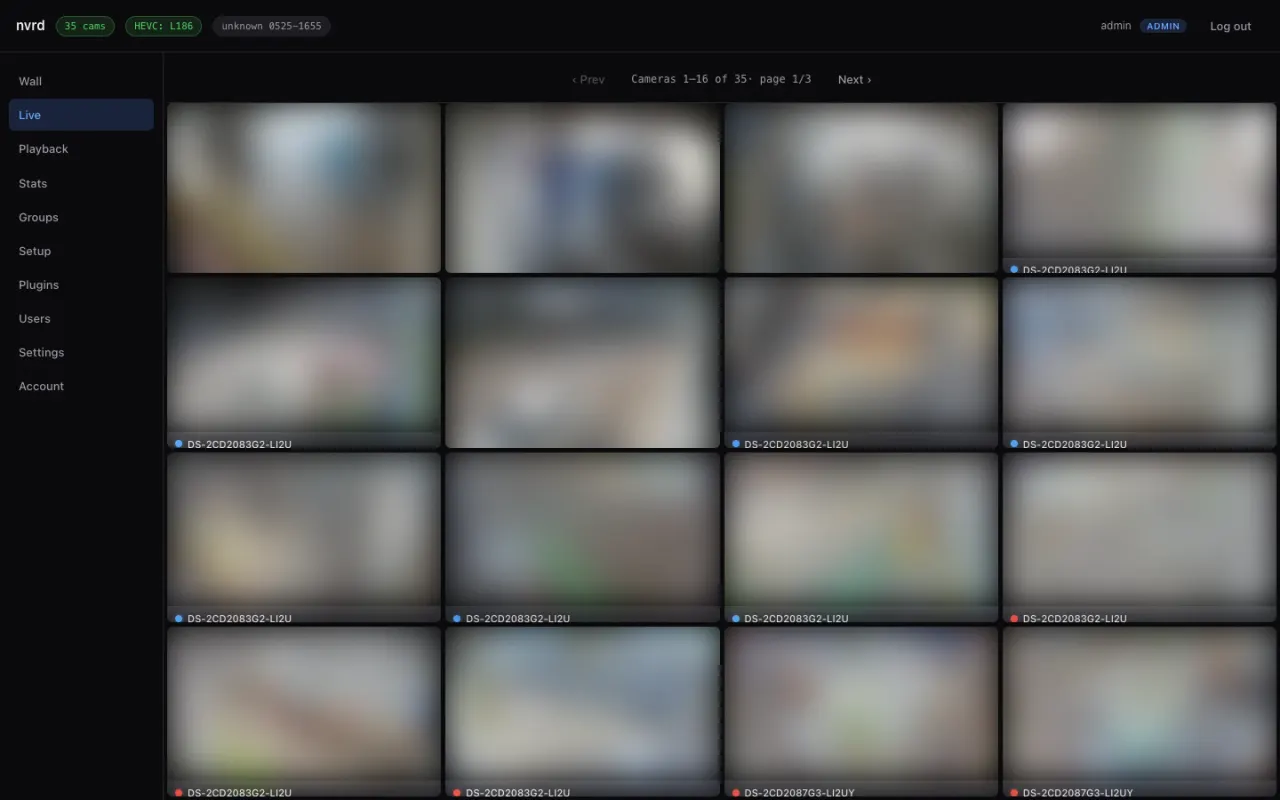
The home view is a grid of every camera. To keep many cameras smooth, each tile shows the camera’s low-resolution sub stream; the moment you click a tile to focus it, NVR switches that camera to the full-resolution main stream. That tiered approach is what lets a single box show 16+ cameras at once without melting.
Scrubbing the timeline#
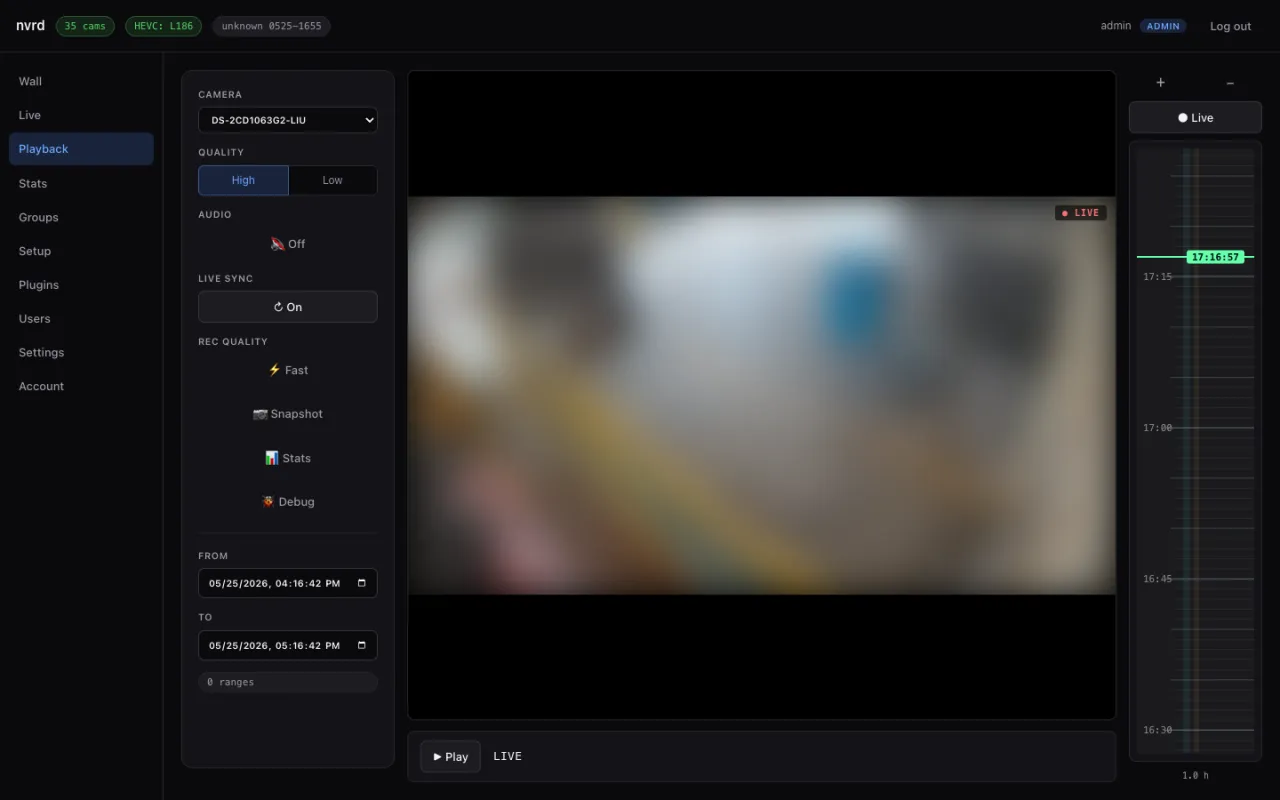
The Playback view is for going back in time. Pick a camera and a moment, and drag along the timeline to scrub — seeking is instant because NVR scrubs the lightweight recorded sub stream and only fetches full-resolution frames when you pause on the instant you want. From here you can switch between Fast (quick, low-res seeking) and full-quality playback, jump back to Live, and grab a snapshot or download a clip.
Browser support#
Cameras in this fleet stream H.265 (HEVC), which plays natively in:
- Safari — always.
- Chrome 107+ and Edge on a Mac (hardware decode).
On a browser that can’t decode HEVC (Firefox, Chrome without hardware HEVC), NVR automatically serves an H.264 compatibility stream — transcoded on demand for that viewer only; recordings are never touched. On an iPhone, Safari falls back to native HLS.